Regex Proximity Groups
Regex Proximity Groups allow you to detect when multiple regex patterns appear within a specified distance of each other in your scanned files. This is useful for finding related information that needs to be near each other to be meaningful, such as:
- Social Security Numbers appearing near email addresses
- Names appearing near phone numbers
- Credit card numbers appearing near CVV codes
- Custom patterns that indicate sensitive data when found together
How It Works
A Regex Proximity Group consists of:
- Name - A descriptive name for the group (e.g., "SSN + Email Proximity")
- Description - Optional details about what the group detects
- Distance - Maximum character distance within which ALL patterns must appear
- Patterns - A collection of regex patterns, at least two of them (all must match within the distance)
When scanning files, PII Crawler checks if all patterns in a group appear within the specified character distance. Only when ALL patterns are found within that window is a match recorded.
A group needs at least two patterns to do anything: one pattern has nothing to be near. A group left with a single pattern is skipped by any scan that uses it, and the Logs view says which group and why. To look for one pattern on its own, add a custom regex rule instead.
Creating a Proximity Group
You can create proximity groups through the web interface:
- Navigate to Proximity groups in the sidebar
- Click New proximity group
- Enter a name and optional description
- Set the distance (in characters) - default is 600
- Add regex patterns (one per line)
- Click Create proximity group
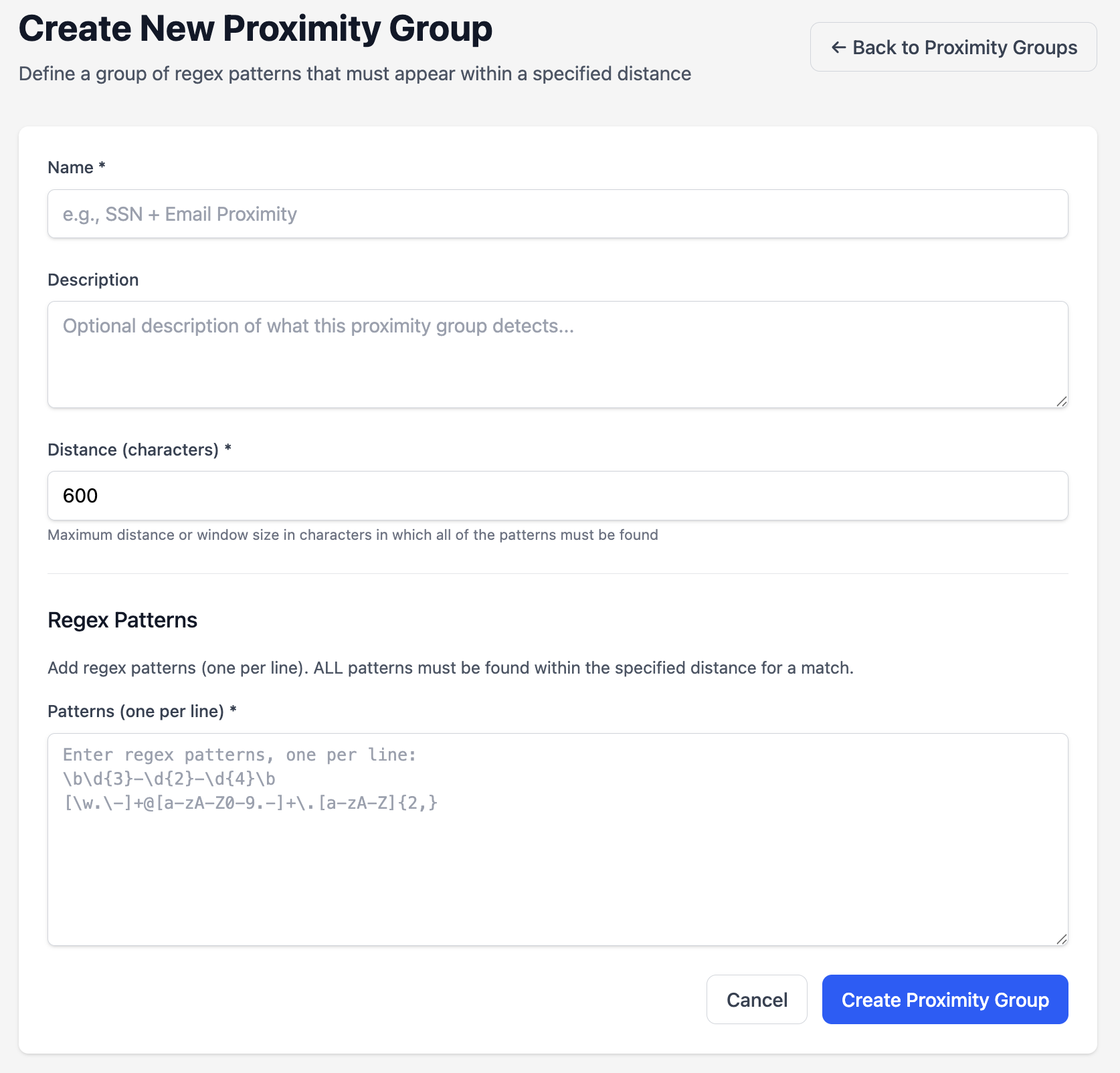
Example: SSN + Email Detection
Name: SSN + Email Proximity
Description: Finds SSNs within 600 characters of an email address
Distance: 600

Patterns:
\b(00[1-9]|0[1-9][0-9]|[1-5][0-9]{2}|6[0-5][0-9]|66[0-57-9]|6[7-9][0-9]|[78][0-9]{2})-(0[1-9]|[1-9][0-9])-(000[1-9]|00[1-9][0-9]|0[1-9][0-9]{2}|[1-9][0-9]{3})\b
[\w.\-]+@[a-zA-Z0-9.-]+\.[a-zA-Z]{2,}
This group will only match when both an SSN and an email address are found within 600 characters of each other.
Using Proximity Groups in Scans
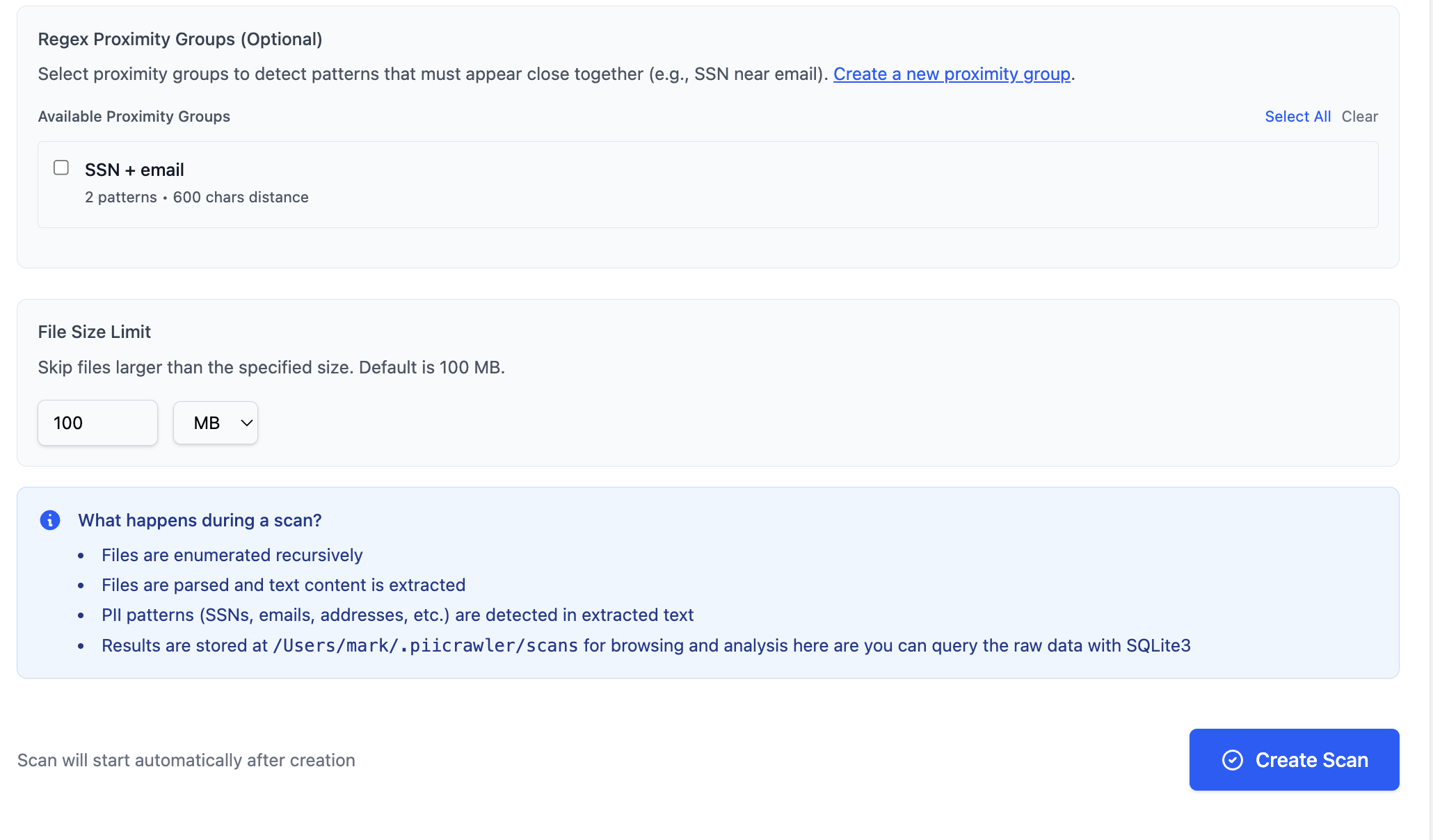
When creating or configuring a scan:
- Navigate to the scan configuration page
- In the Regex proximity groups section, select which groups to include
- The selected groups will be active during the scan
- Matches will appear in the results with a kind based on the group's slug
Groups are chosen per scan, on the new-scan form in the TUI or web UI. A scan started from the command line looks for what the command asks for, so piicrawler scan does not run your saved proximity groups even with --save. Start the scan from the TUI or web UI to use one.
Understanding Distance
The distance parameter defines a sliding window in characters:
- Smaller distances (e.g., 100-300 chars) - More restrictive, patterns must be very close
- Medium distances (e.g., 600-1000 chars) - Good for general proximity detection
- Larger distances (e.g., 2000+ chars) - Patterns can be far apart, more matches but less meaningful
The distance is measured in characters, not words or lines. Whitespace, punctuation, and all other characters count toward the distance. A character counts as one character whatever alphabet it is written in, so a 600-character window covers the same amount of text in an English document, a German one and a Japanese one.
The distance must be at least 1.
Pattern Validation
PII Crawler checks every regex pattern as you save it, whether you are creating a group or adding a pattern to one that already exists:
- Invalid regex syntax is rejected with an error message naming the pattern that failed
- Patterns use a linear-time regex engine, so lookarounds (like
(?!...)) and backreferences (like\1) are not supported and will be rejected - Patterns are case-sensitive by default (use
(?i)flag for case-insensitive matching)
A group runs all of its patterns or none of them, which is why a pattern is refused at the point you save it rather than at the point you scan.
Examples
Name + Phone Number
Name: Name + Phone Proximity
Description: Detects names near phone numbers
Distance: 400

Patterns:
\b[A-Z][a-z]+\s+[A-Z][a-z]+\b
\b\d{3}[-.]?\d{3}[-.]?\d{4}\b
Address + SSN
Name: Address + SSN Proximity
Description: Finds street addresses near SSNs
Distance: 800

Patterns:
\b\d{1,5}\s+[A-Za-z\s]+(?:Street|St|Avenue|Ave|Road|Rd|Boulevard|Blvd|Lane|Ln|Drive|Dr|Court|Ct|Circle|Cir)\b
\b(00[1-9]|0[1-9][0-9]|[1-5][0-9]{2}|6[0-5][0-9]|66[0-57-9]|6[7-9][0-9]|[78][0-9]{2})-(0[1-9]|[1-9][0-9])-(000[1-9]|00[1-9][0-9]|0[1-9][0-9]{2}|[1-9][0-9]{3})\b
Multiple Keywords Cluster
Name: Sensitive Terms Cluster
Description: Detects when multiple sensitive keywords appear together
Distance: 500

Patterns:
\b(?i)(confidential|secret|private)\b
\b(?i)(password|credential|token)\b
\b(?i)(api[_-]?key|access[_-]?key)\b
Viewing Groups
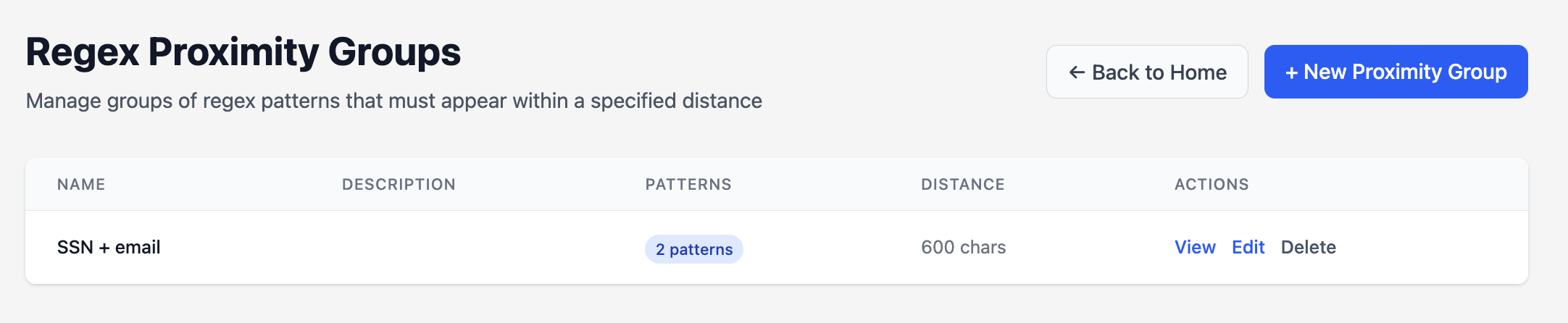
Navigate to Proximity groups to see all available groups with:
- Name and description
- Number of patterns in each group
- Distance configuration
- Actions (View, Delete)
Editing Groups
- Click Edit on any proximity group
- Modify name, description, distance, or patterns
- Changes apply to future scans only (existing scan results are not affected)
Deleting Groups
Deleting a proximity group:
- Removes the group and all its patterns
- Does not affect historical scan results
- Cannot be undone
Tips and Best Practices
- Start with reasonable distances - 600-1000 characters works well for most use cases
- Test your patterns - Use the regex tester to validate patterns before adding them
- Be specific - More specific patterns reduce false positives
- Consider context - Think about how far apart related data typically appears
- Name descriptively - Use clear names that explain what the group detects
- Document patterns - Use the description field to explain complex pattern combinations