 Enterprise-grade PII scanning at an affordable price!
PII Identity Scan
Overview
PII Identity Scan is a specialized scan type that associates PII findings with identifiable individuals. Unlike a standard PII scan which simply detects personal data, an Identity Scan links each piece of PII (SSNs, phone numbers, emails, etc.) to the person it belongs to, based on names found nearby in your documents.

Example output:
Fred Smith: employee-list.xls: SSN, Address, Phone
Greg Jones: employee-list.xls: SSN, Address, Phone
Greg Jones: contacts.pdf: Address, Phone
Amy Miller: customer-data.doc: Drivers License, Credit Card, Phone
This is useful for GDPR compliance, data subject access requests, or understanding exactly whose personal information exists in your files.
How It Works
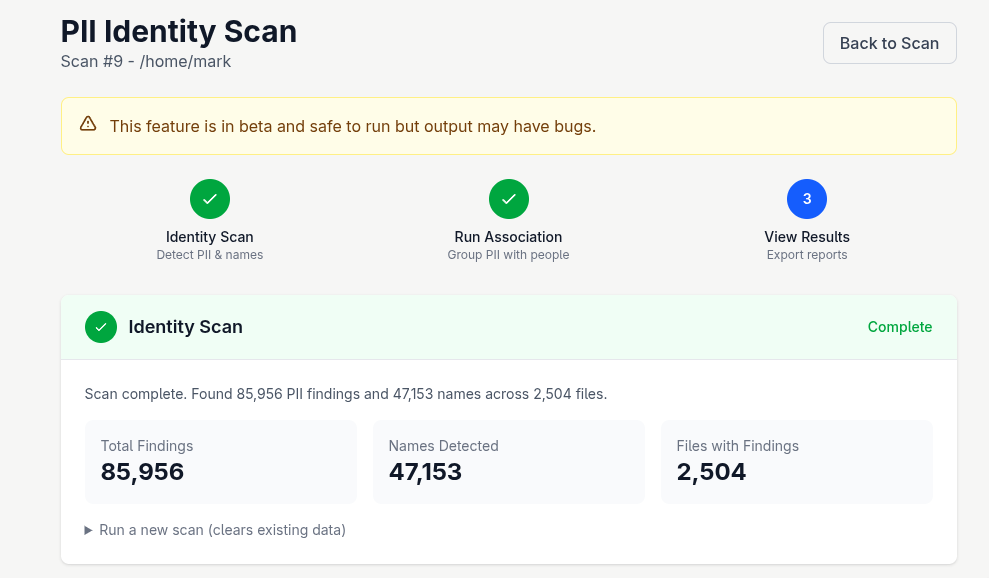
The PII Identity Scan operates in three phases:
Phase 1: Identity Scan
Detects all configured PII types along with full names in your files. The scan stores the position of each finding along with surrounding context (the text around each match).
Phase 2: Association Processing
Groups PII findings with detected names based on proximity rules. For example, if "John Smith" appears on the same line as "123-45-6789", the SSN is associated with John Smith. This step can be run multiple times with different settings without rescanning your files.
Phase 3: Results & Reporting
Browse results grouped by person, mark false positives, and export CSV reports.
Starting a PII Identity Scan
- From your scan's overview page, click PII Identity Scan in the Quick Actions section
- Configure your scan:
PII Types to Detect
Select which PII types you want to find:
- Full Names - Detect and link first + last name combinations
- Social Security Numbers - US SSN patterns (XXX-XX-XXXX)
- Phone Numbers - US phone number formats
- Email Addresses - Email patterns
- Addresses - US street addresses and city/state/zip
- Credit Cards - Major credit card patterns
- Dates of Birth - Common date formats
- Driver's Licenses - US driver's license patterns
Context Storage Mode
Choose how the scan stores surrounding text:
- Standard (Recommended) - Stores context when a Full Name is found near other PII on the same line. This is efficient for most use cases.
- Match All - Stores context for every finding regardless of proximity. Use this if you need maximum flexibility for association, but note it uses more storage.
- Click Start Identity Scan
The scan runs in the background and shows real-time progress including:
- Current file being processed
- Number of findings and names detected
- Any errors encountered
- Elapsed time
Running Association
After the identity scan completes, you need to run association processing to link PII findings with names.
- Go to the Run Association section
- Enter a Run Name (e.g., "GDPR Audit January 2025")
- Select an Association Method:
Association Methods
- Same Line - Associates PII found on the same line as the name. Best for structured data like spreadsheets or CSV files where each row contains one person's data.
- Character Distance - Associates PII within a configurable number of characters from the name. Useful for documents where related information spans multiple lines but stays close together. You can set the maximum distance (default: 200 characters).
- Same Paragraph - Associates PII found in the same paragraph (separated by blank lines) as the name. Good for documents with clear paragraph separation.
- Click Run Association
You can create multiple association runs with different settings. Each run is saved and can be viewed independently. This lets you experiment with different methods without rescanning files.
Viewing Results
By Person View
The main results view shows all detected people with:
- Number of files containing their PII
- Count of PII items found
- Types of PII detected (shown as colored badges)
Click View Details on any person to see their complete PII breakdown.
Person Details
Shows all PII for a specific person, organized by file:
- Each file is listed with the number of PII items
- Click any finding to see context details in a sidebar
- View the surrounding text where the PII was found
- See the association method and distance used
Unassociated Findings
The Unassociated count shows PII that couldn't be linked to any name. Click View to see these findings. This happens when:
- PII appears in files without detected names
- PII is too far from any name (based on your association method)
- Context wasn't stored (when using Standard mode and no name was nearby)
Marking False Positives
If the scan incorrectly identified something as PII, you can mark it as a false positive. Click the False Positive dropdown on any finding and choose a scope:
- This finding only - Hides just this specific occurrence in this file
- All "[text]" - Hides all occurrences of this exact text everywhere in this run
- [Name] + [type] - Hides all PII of this type for this person (e.g., all SSNs for "John Smith")
False positives are scoped to the association run—they don't affect other runs.
Exporting Reports
Click Download CSV to export results. The CSV includes:
- Full Name
- File Name
- PII Types found
- Ambiguous flag (if multiple names were near the PII)
Reports automatically filter out findings you've marked as false positives.
Tips for Best Results
- Use Standard context mode unless you have a specific reason to store all context
- Start with Same Line association for spreadsheets and structured data
- Use Paragraph association for documents with clear paragraph structure
- Create multiple association runs to find the best method for your data
- Review unassociated findings to catch PII that needs manual review